
How to Kill ClickFix Before It Hijacks Your Clipboard

If a website ever asks you to prove you are human by pressing Win + R and pasting a code, stop immediately, you have just encountered a fake CAPTCHA Win+R trap. Security researchers track this widespread social engineering campaign as ClickFix, a technique that turns your own system clipboard into a silent malware delivery tool. Knowing how to kill ClickFix before it hijacks your clipboard is essential for protecting your Windows PC from infostealers and remote access trojans.
Instead of applying blunt restrictions that break legitimate administrative tools, you can combine Windows security policies with smart browsing habits to shut this threat down cleanly.
How the Fake CAPTCHA Win+R Attack Works
ClickFix disguises itself as a routine browser error, missing font update, or human verification prompt, frequently imitating Cloudflare Turnstile or Google reCAPTCHA. When you land on a compromised website or click a malicious advertisement, an overlay instructs you to complete a quick “manual verification” step to unlock the page.
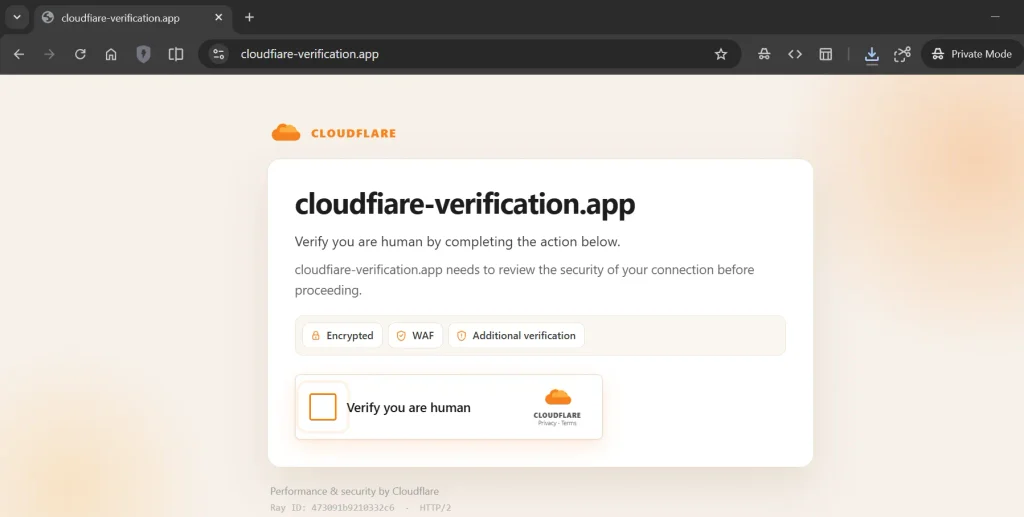
The moment you click the prompt, malicious JavaScript silently writes an obfuscated PowerShell or MSHTA command directly into your Windows clipboard. The webpage then guides you through three seemingly harmless keystrokes:
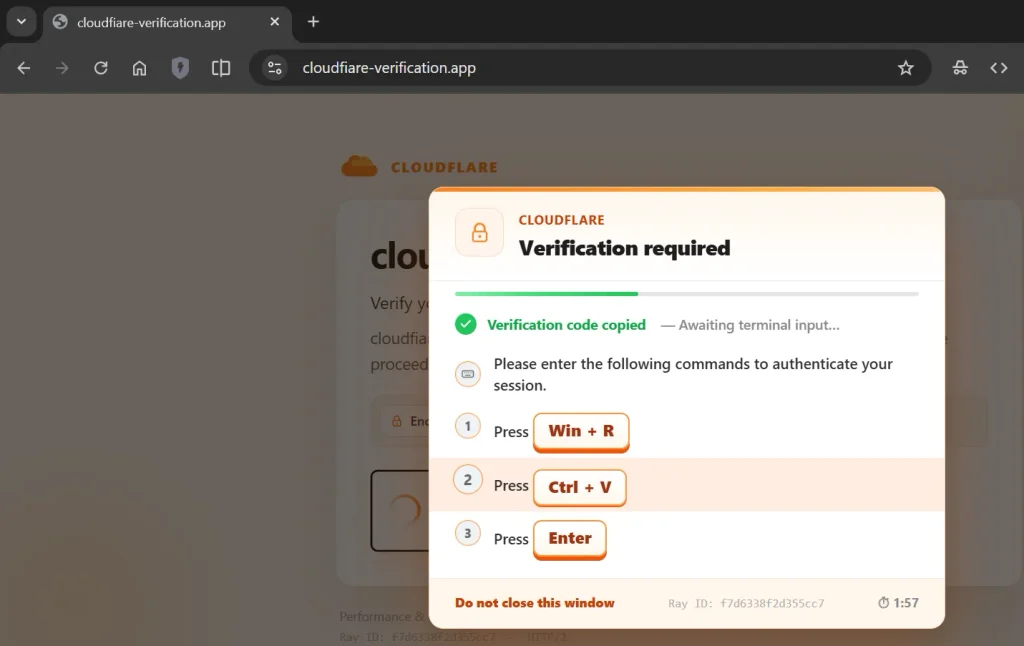
- Press Win + R to open the Windows Run dialog.
- Press Ctrl + V to paste the hidden “verification token” from your clipboard.
- Press Enter to execute the command.

Because you manually initiate the process, Windows treats the action as an authorized task. Within seconds, the hidden script fetches malware like Lumma Stealer directly into memory, completely bypassing standard browser download alerts.
How to Kill ClickFix Safely
Bluntly disabling core Windows utilities can interfere with legitimate software installers or troubleshooting workflows. Instead, focus on controls that neutralize malicious behavior while preserving normal system functionality.
| Defense Layer | Mechanism | Side Effects / Trade-offs | Best For |
| Defender ASR Rules | Blocks obfuscated scripts & child processes | Minimal; may require exclusions for custom admin scripts | All Windows 10/11 users |
| File Association Hardening | Routes .hta files to Notepad | None for standard users (legacy enterprise apps may use HTA) | Everyone |
| DNS & Ad Filtering | Blocks malicious overlays & C2 domains | Occasional false positives on aggressive ad-supported sites | Network & browser layer |
| Disable Win + R (Optional) | Removes Windows Run shortcut | Blocks quick access to cmd, regedit, or network shares | Non-technical / shared PCs |
1. Neutralize Legacy .hta Script Execution
ClickFix payloads frequently use mshta.exe (Microsoft HTML Application Host) to execute remote scripts disguised as verification checks. Because modern Windows applications almost never rely on .hta files, changing their default handler eliminates a major attack vector with virtually zero side effects.
- Open Windows Settings > Apps > Default apps.
- Search for
.htain the file type search bar. - Change the default program from Microsoft HTML Application host to Notepad.
If a fake verification prompt ever tricks a user into triggering an .hta payload, Windows simply opens the raw text safely in Notepad instead of running the code.
2. Enable Windows Defender Attack Surface Reduction (ASR)
Instead of completely disabling PowerShell—which can break legitimate software updates, developer tools, and system scripts—use Microsoft Defender’s Attack Surface Reduction rules. ASR specifically blocks obfuscated scripts and prevents processes from downloading and running hidden payloads from the internet.
To enable the rule that blocks obfuscated scripts via an elevated PowerShell window, run:
PowerShell
Add-MpPreference -AttackSurfaceReductionRules_Ids 5BEB7EFE-FD9A-4556-801D-275E5FFC04CC -AttackSurfaceReductionRules_Actions Enabled
(Note: Keep in mind that Set-ExecutionPolicy Restricted only stops local .ps1 script files; ClickFix bypasses it by passing encoded commands directly via -EncodedCommand or Invoke-Expression, making ASR rules a far more reliable defense).
3. Block Clipboard Injection at the Browser and DNS Level
Stopping rogue scripts before they reach your clipboard protects your workflow without altering operating system behavior. Equip your browsers with a reputable content blocker like uBlock Origin to strip out malvertising and fake Cloudflare verification overlays.
At the network level, configure your router or Windows network adapter to use a threat-blocking DNS resolver, such as Quad9 (9.9.9.9) or Cloudflare Malware Blocking (1.1.1.2). These resolvers automatically drop connections to known command-and-control (C2) infrastructure if a script ever manages to execute.
4. Disable Win + R Only on High-Risk or Shared Endpoints
Disabling the Windows Run dialog (Win + R) completely breaks the ClickFix execution chain, as users cannot easily paste and run commands. However, avoid applying this to your personal workstation or developer machine, as it removes a convenient shortcut for launching system utilities and network paths.
Reserve this strict lockdown strictly for non-technical family members, public kiosks, or front-desk computers where users have no legitimate reason to use the Run box:
DOS
reg add "HKCU\Software\Microsoft\Windows\CurrentVersion\Policies\Explorer" /v NoRun /t REG_DWORD /d 1 /f
Smart Habits to Protect Your Clipboard
Technical guardrails work best when paired with simple daily habits that cost zero system functionality:
- Treat
Win + Rprompts as an immediate red flag: No legitimate website, CAPTCHA service, or media player will ever ask you to paste text into the Windows Run box or a terminal window. - Inspect your clipboard with
Win + V: Whenever you suspect a webpage copied data without your consent, press Win + V to open Windows Clipboard History. You can inspect the raw text safely—and clear it—without pasting it into an active prompt. - Close trapped tabs via keyboard shortcuts: If a pop-up locks your screen or demands urgent troubleshooting steps, close the tab immediately using Ctrl + W rather than clicking any button inside the page frame.
Staying Safe Without Losing Control
Mastering how to kill ClickFix comes down to precision rather than heavy-handed restrictions. By rerouting legacy .hta files to Notepad, enabling Defender ASR rules against obfuscated scripts, and recognizing any fake CAPTCHA Win+R prompt as a threat, you neutralize clipboard hijacking while keeping your Windows environment fast and flexible. Apply these targeted adjustments today to protect your credentials without sacrificing productivity.